001 - Performing a Scan in Windows XP Using Tenable Nessus
Cybersecurity Coaches: Jeremiah Batac and Ray Caparros
Task: Install Tenable Nessus, build a Windows XP/Windows 7 test machine on the same subnet, perform a vulnerability scan, and document the process.
Objective
The objective of this activity was to gain hands-on experience with vulnerability scanning using Tenable Nessus.
As assigned by my mentor, Sir Jay, I needed to:
- Install Tenable Nessus.
- Build a Windows XP or Windows 7 virtual machine.
- Place the systems on the same network/subnet.
- Verify connectivity between the scanning machine and the target machine.
- Perform a vulnerability scan using Nessus.
- Review and document the scan results.
For this lab, I used Windows XP as the target machine and ran it inside VMware Workstation Pro. I used my Windows computer as the machine running Nessus.
Tools and Environment
The following tools and systems were used:
- Tenable Nessus Essentials Plus for Education - vulnerability scanner
- VMware Workstation Pro - virtualization platform
- Windows XP - target/test machine
- Windows host computer - scanning machine
- Host-only Network - isolated network between the host and virtual machine
The target Windows XP machine was configured with the IP address:
192.168.78.129
The use of a host-only network allowed me to create a private lab environment between my computer and the Windows XP virtual machine.
Installing Tenable Nessus
I started by obtaining Tenable Nessus through Tenable's official education guide:
https://www.tenable.com/guides/tenable-nessus-for-education
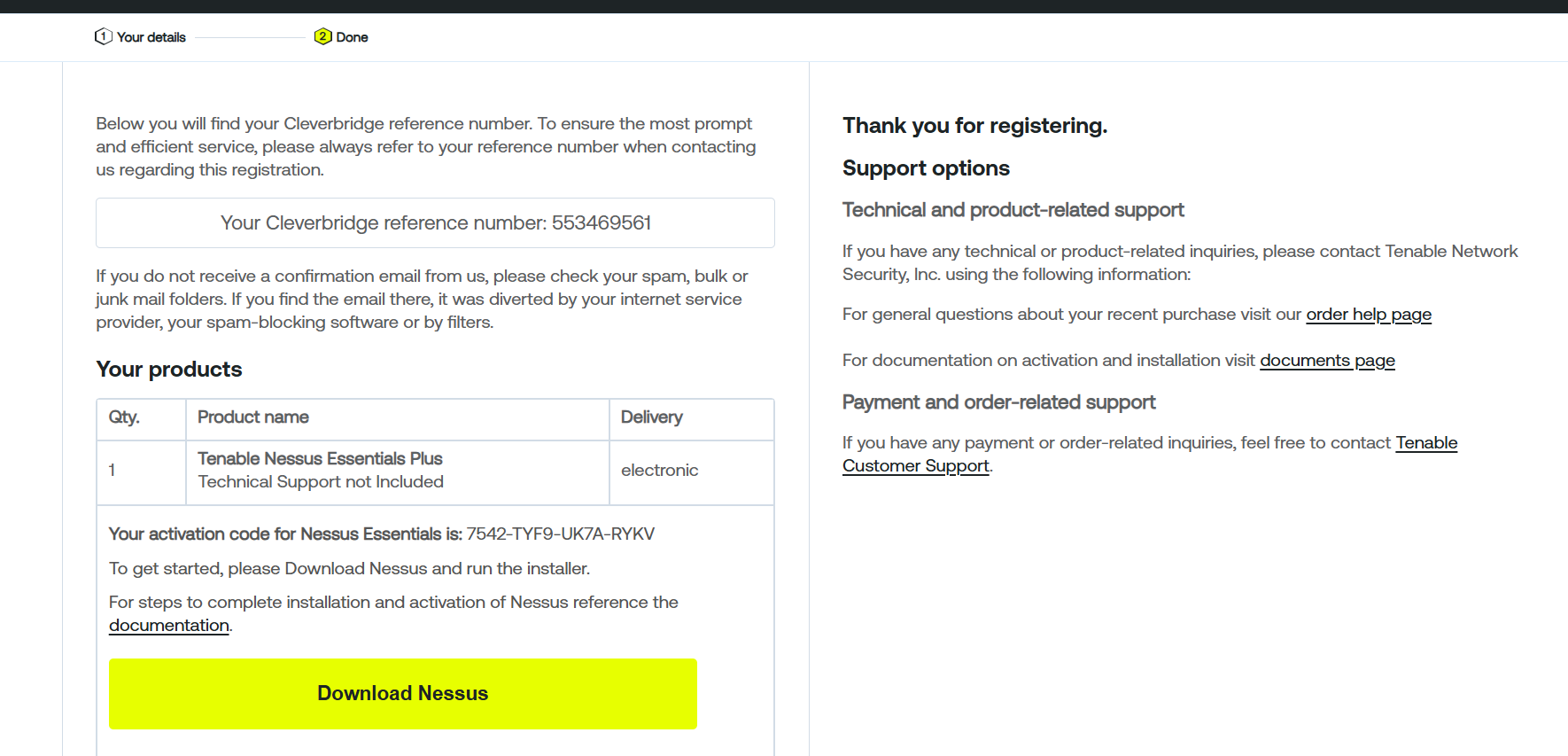
I registered for the Nessus Essentials Plus for Education version and made sure to keep a copy of the activation code because it was required during the setup process.
I initially encountered information about Tenable Core, which requires additional permissions and configuration. However, I determined that I could proceed with the lab using the standalone Tenable Nessus installation on Windows.
After launching Nessus, I proceeded with the registration process.
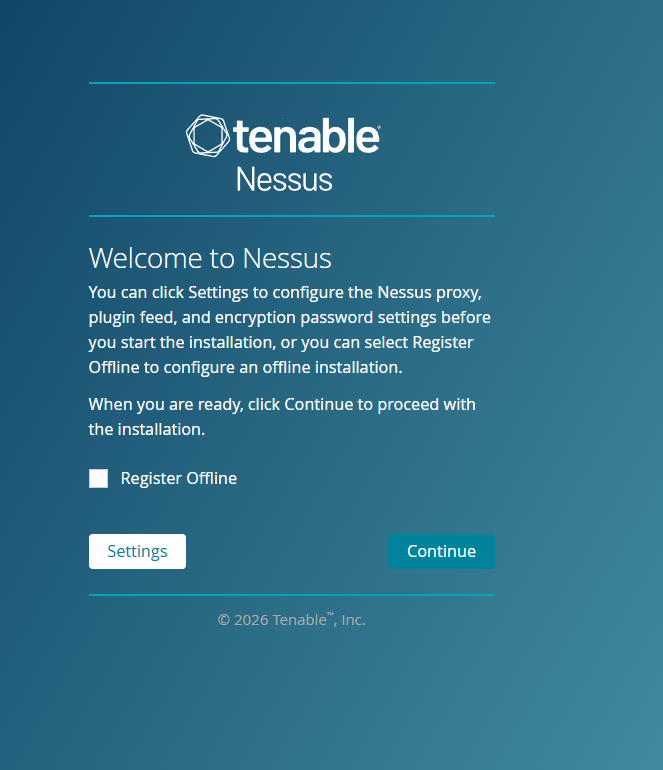
I selected the option for offline registration and entered the activation code that I obtained during the registration process.
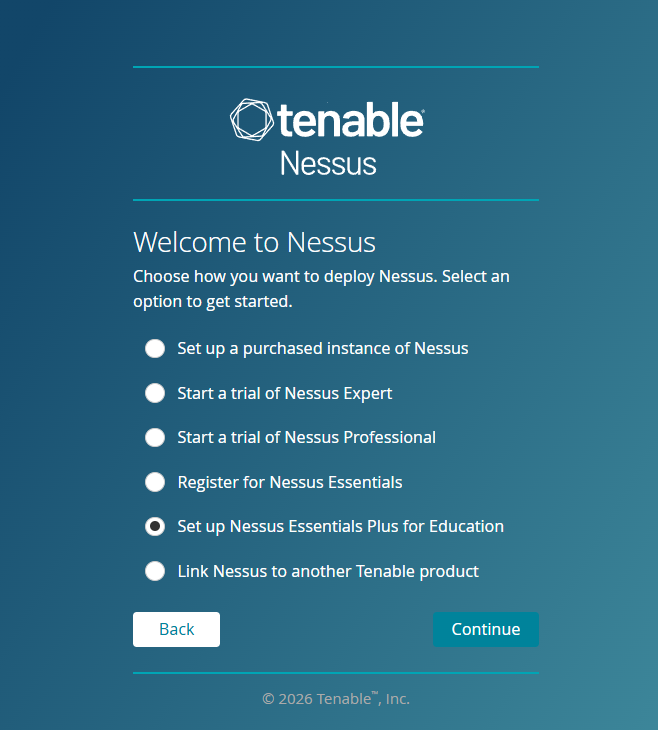
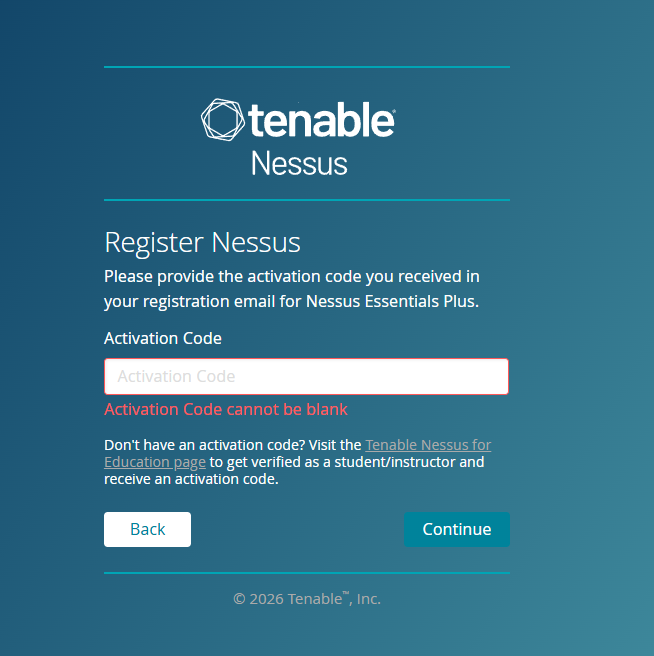
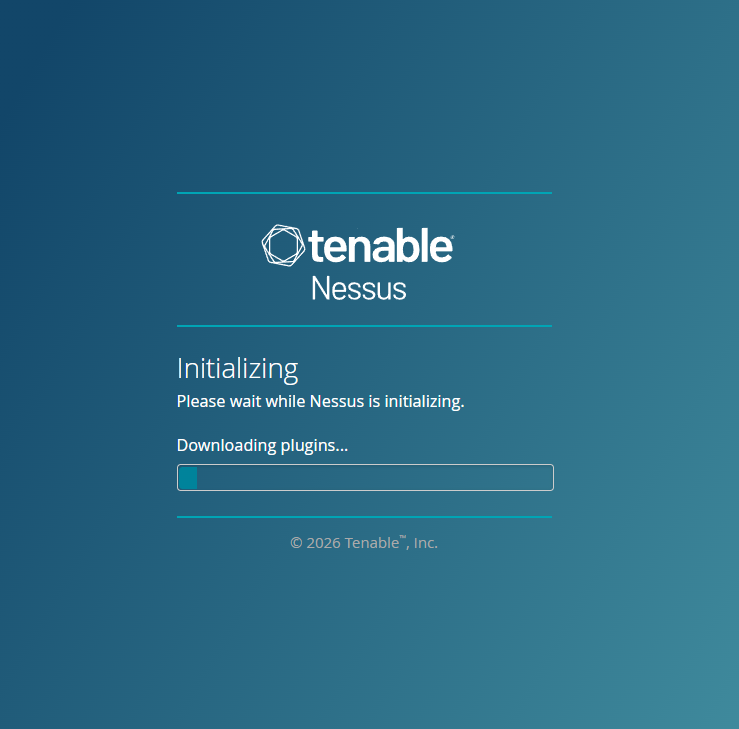
Nessus then began initializing and compiling the necessary components. I waited for the initialization process to complete before proceeding with the vulnerability scanning setup.
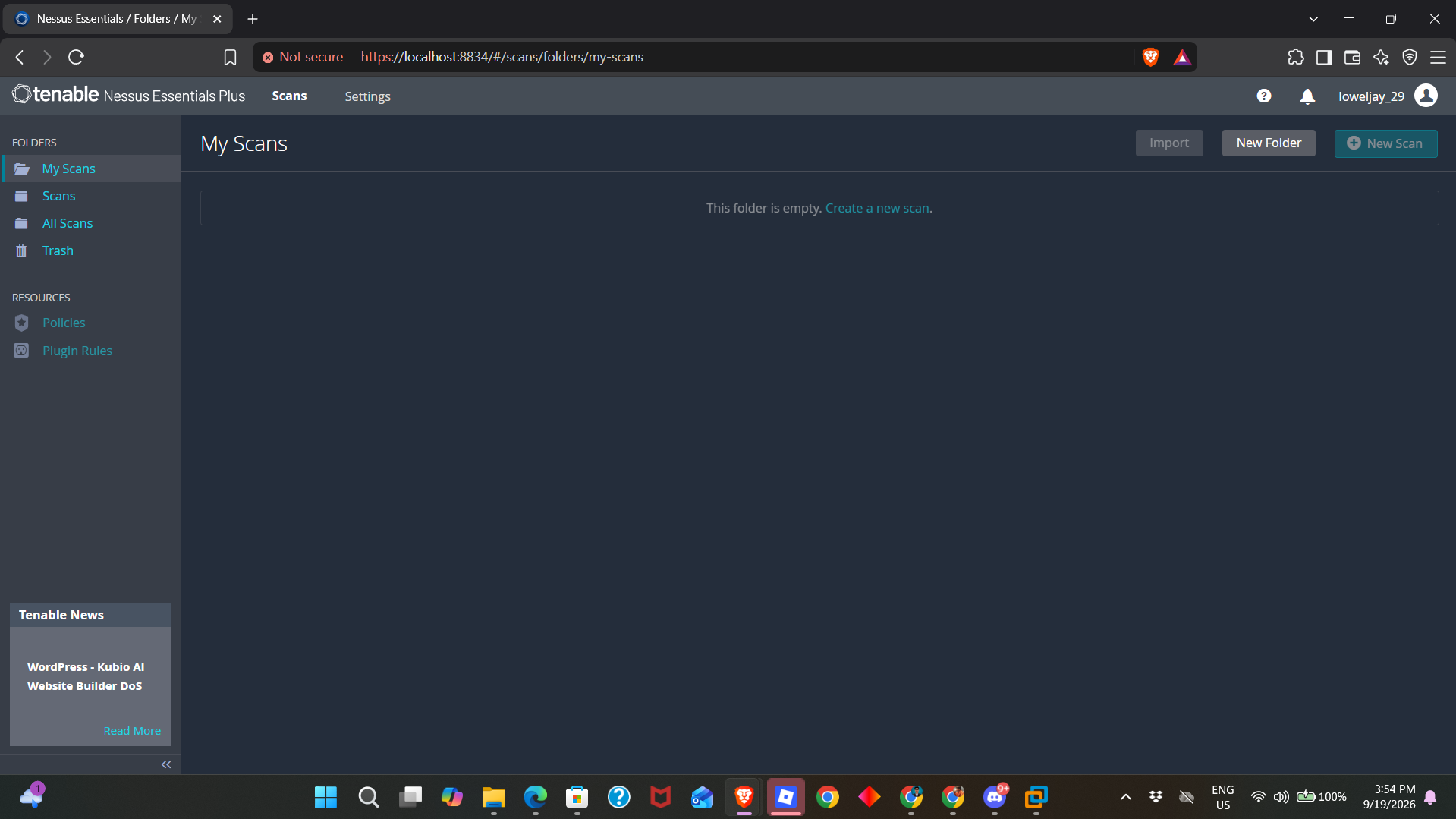
Setting Up the Windows XP Virtual Machine
After setting up Nessus, I created the target environment.
I downloaded VMware Workstation Pro from VMware's official website:
https://www.vmware.com/products/desktop-hypervisor/workstation-and-fusion
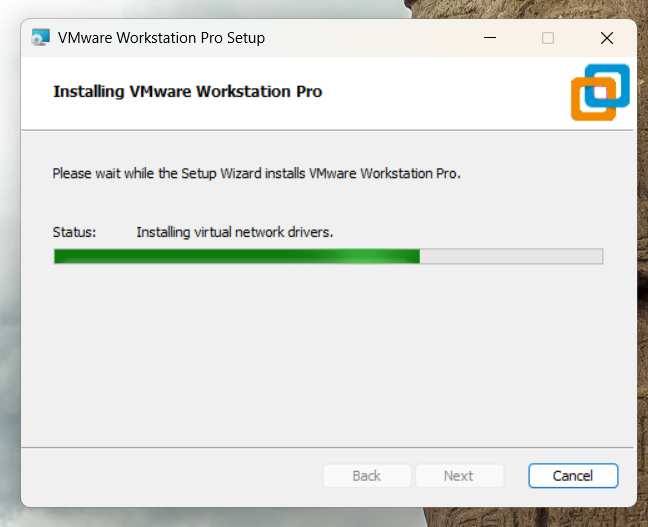
I then obtained a Windows XP ISO here https://isoriver.com/windows-xp-iso-download/ and used it to create a new virtual machine.
After creating the virtual machine, I configured its network adapter to use Host-only
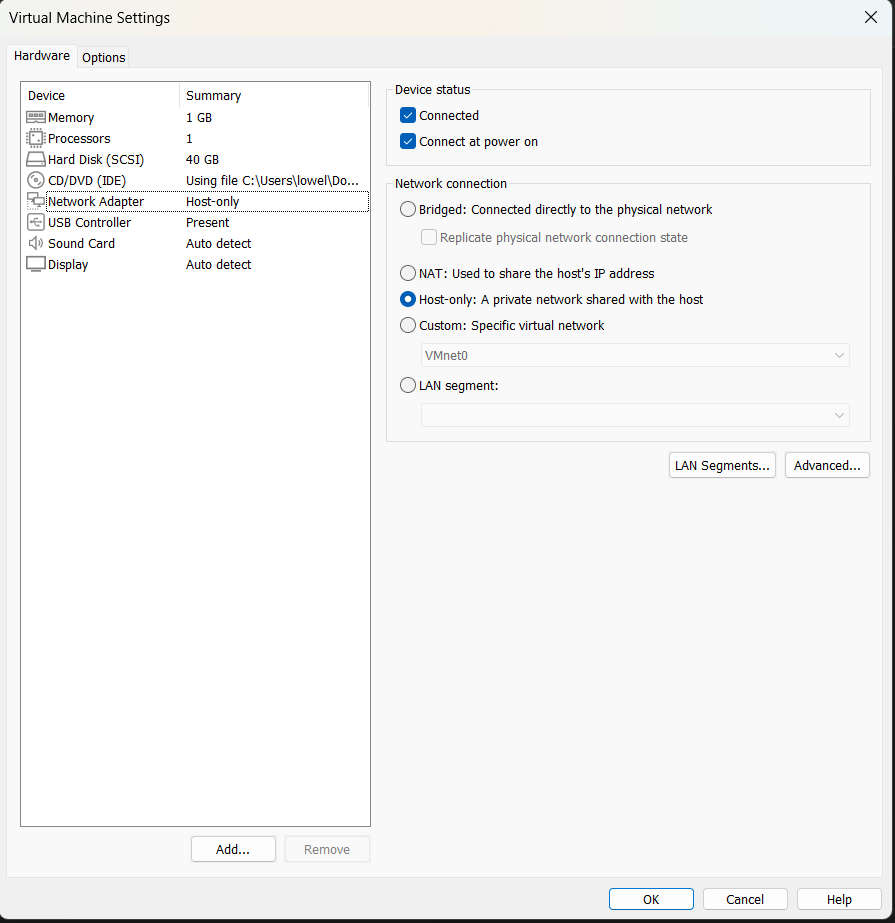
I selected Host-only networking because I wanted the Windows XP machine to communicate privately with my host computer without placing the intentionally vulnerable operating system directly on my normal network or the Internet.
This created an isolated environment that could be used for testing.
Identifying the Target IP Address
After starting the Windows XP virtual machine, I opened the Command Prompt and used:
ipconfig
This allowed me to identify the IP address assigned to the Windows XP machine.
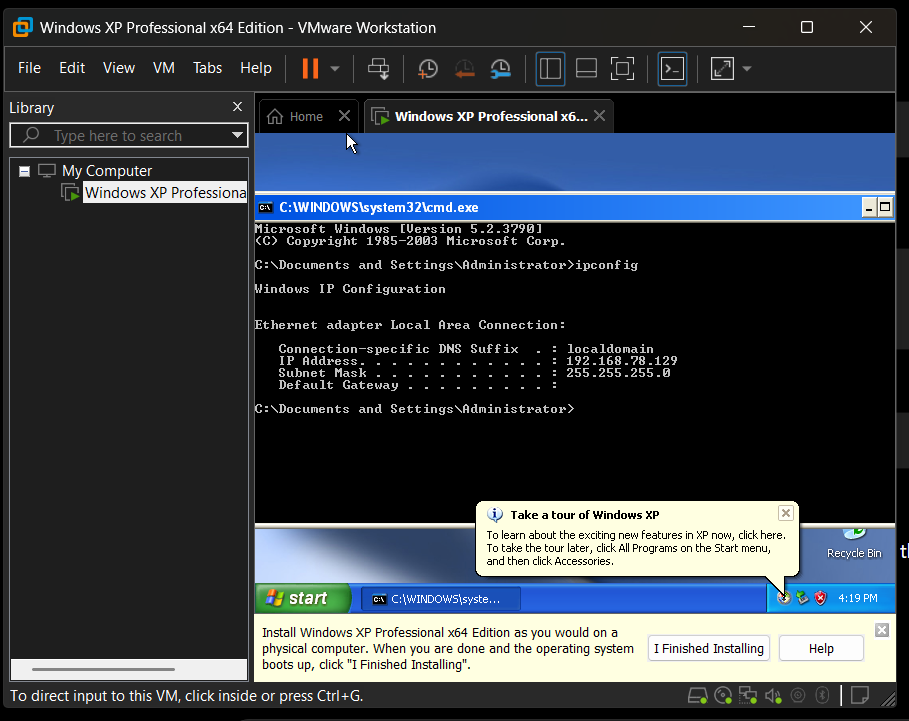
The target machine received:
192.168.78.129
I used this IP address as the target for my Nessus scan.
Testing Network Connectivity
Before performing the vulnerability scan, I first needed to verify that my host computer could communicate with the Windows XP virtual machine.
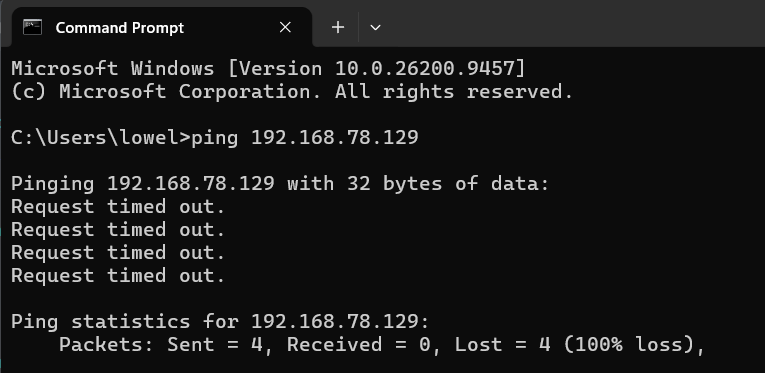
I attempted to ping the target machine using its IP address.
Initially, the ping requests resulted in:
Request timed out.
With the help of ChatGPT, it suggested that the Windows XP firewall was preventing the ICMP traffic from reaching the machine.
Since this was an isolated lab environment, I disabled the Windows XP firewall for the purpose of testing connectivity.
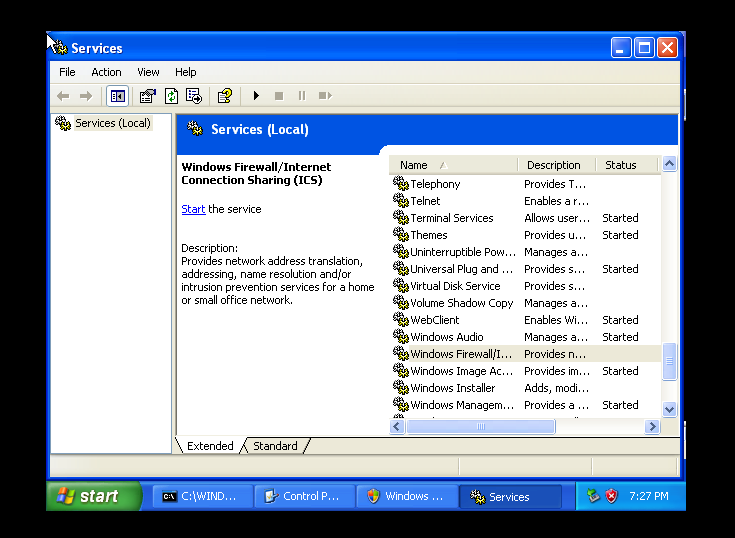
I then performed the ping test again.
This time, the Windows XP machine responded successfully.
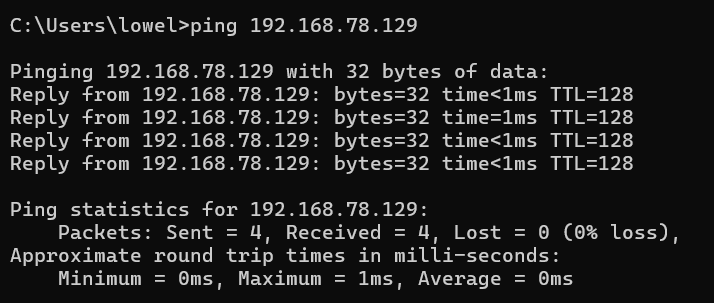
This confirmed that the host computer could communicate with the virtual machine and that the two systems were reachable within the lab network.
Creating the Nessus Scan
Once connectivity had been confirmed, I opened Tenable Nessus.
From the available scan templates, I selected:
Vulnerabilities → Basic Network Scan
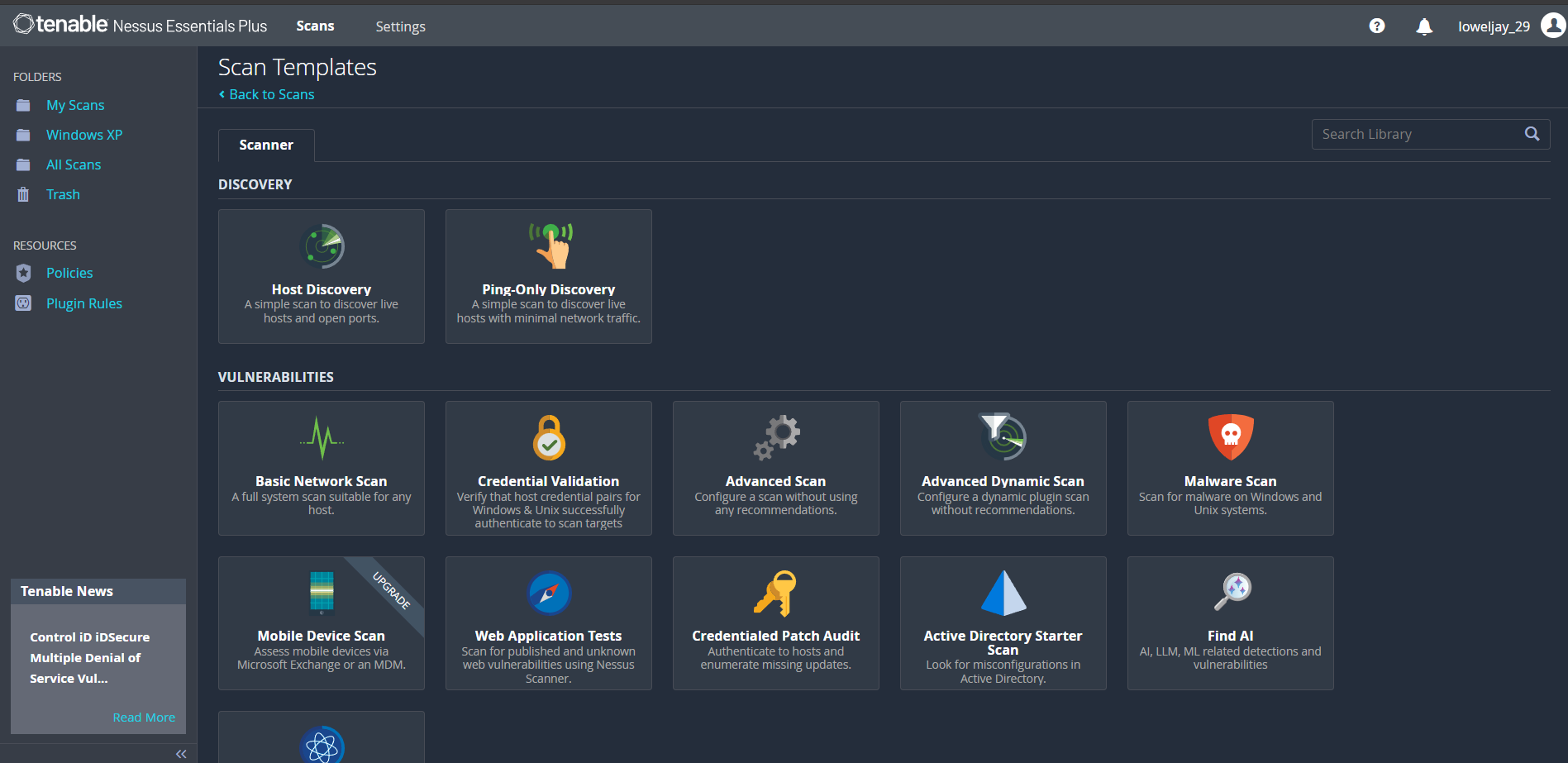
The Basic Network Scan is designed to identify vulnerabilities and security issues on networked systems.
For the target address, I entered the IP address of my Windows XP virtual machine:
192.168.78.129
I then configured the scan and started it.
Nessus began communicating with the target machine and performing its vulnerability assessment.
Scan Results
After the scan completed, Nessus presented the results through its vulnerability dashboard.
The results included multiple findings associated with the Windows XP machine.
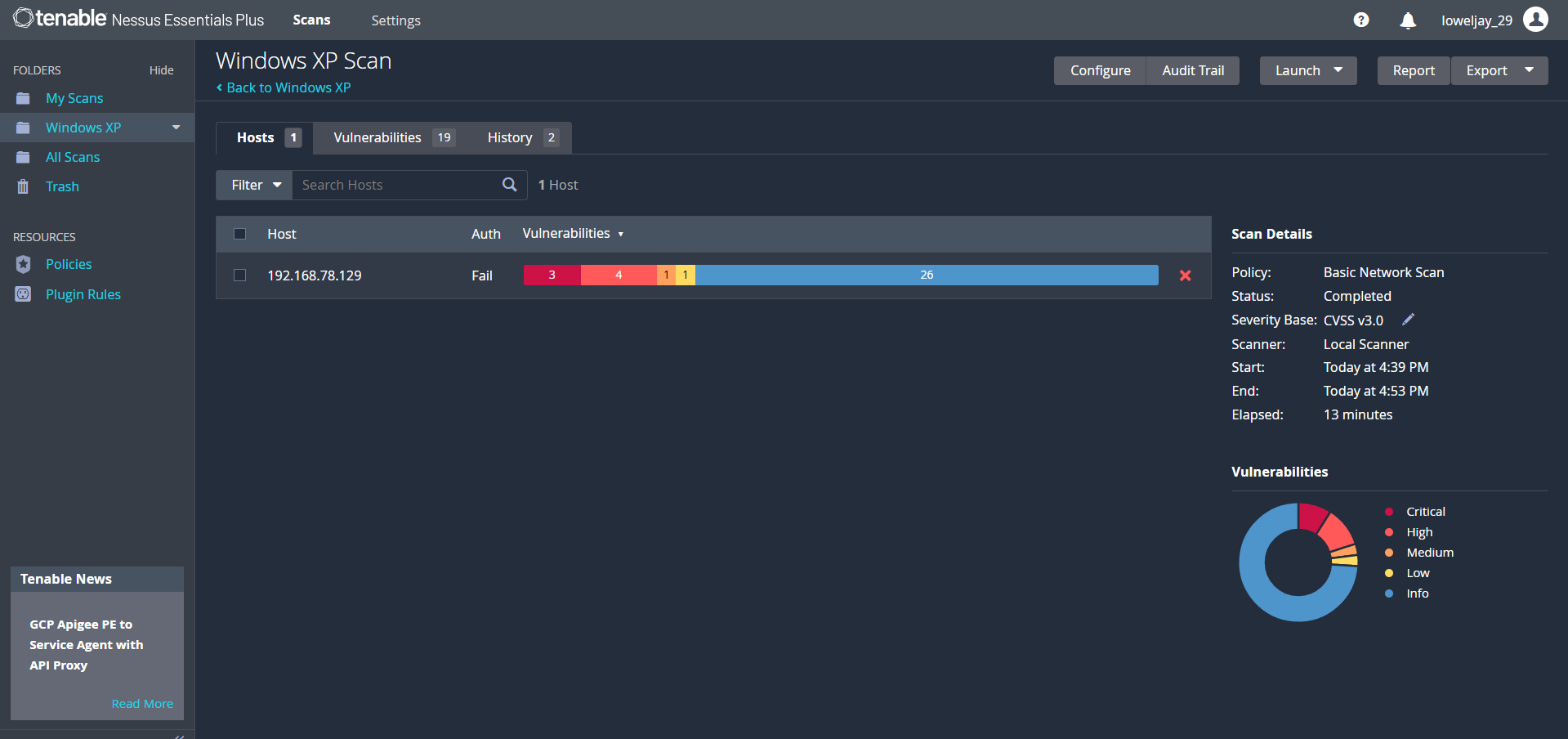
The scan demonstrated that Nessus can automatically examine a target system and identify potential security weaknesses based on the information it discovers.
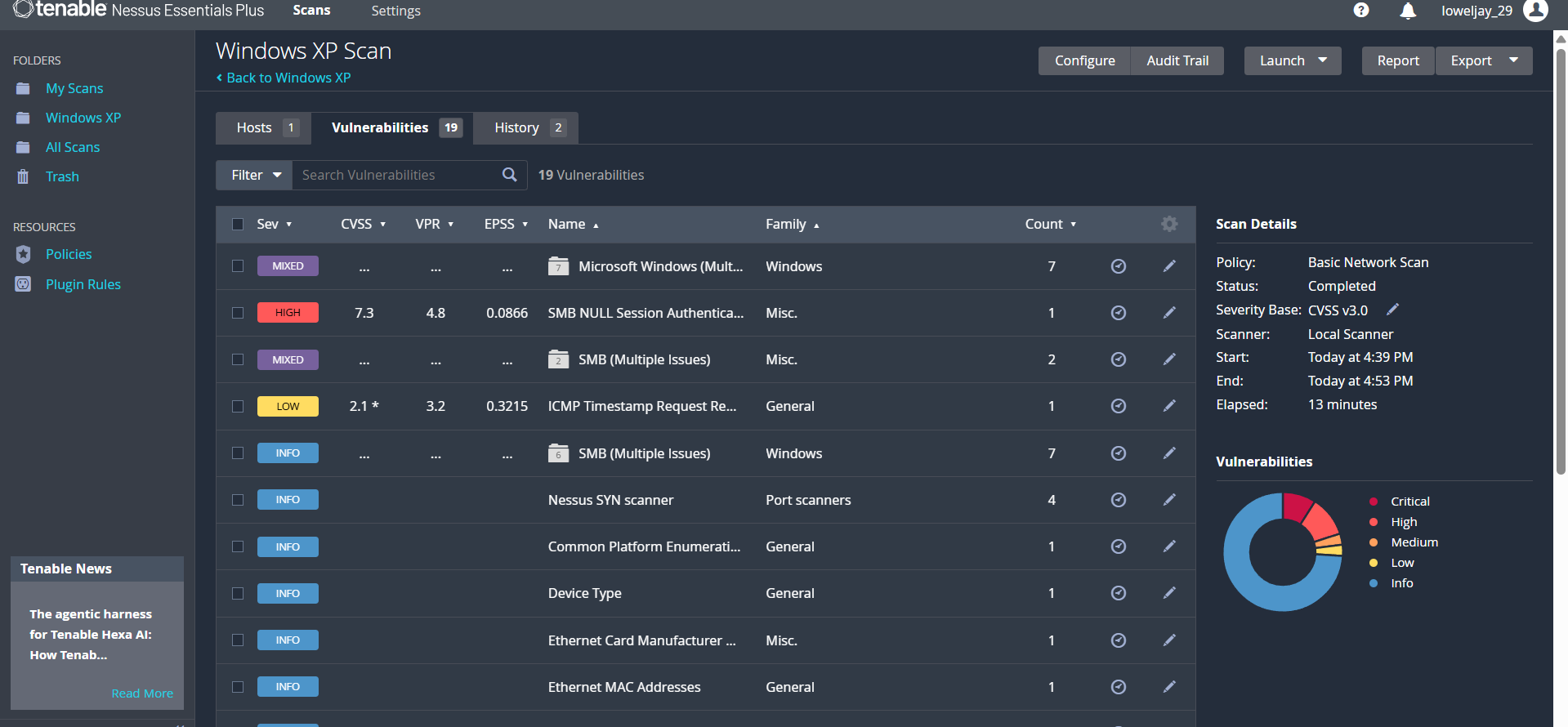
At this stage, I did not yet fully understand every finding presented by Nessus. However, I was able to successfully complete the scanning process and confirm that Nessus was able to assess the Windows XP virtual machine.
The scan results also gave me a starting point for learning how vulnerabilities are categorized, prioritized, and investigated.
What I Learned
This activity helped me understand the basic workflow of vulnerability scanning in a practical environment.
The process I followed was:
Install Nessus
      ↓
Create Windows XP Virtual Machine
      ↓
Configure Host-only Networking
      ↓
Identify Target IP
      ↓
Test Connectivity
      ↓
Configure Nessus Scan
      ↓
Scan Target
      ↓
Review Vulnerability Findings
One of the important things I learned was that vulnerability scanning is not simply about pressing the "Scan" button. The environment needs to be properly prepared first.
I needed to make sure that:
- The target system was running.
- The scanner could communicate with the target.
- Both systems were connected to the appropriate network.
- The target IP address was correct.
- Firewall settings were not preventing the required communication.
- The scanning environment was isolated from unnecessary external networks.
I also learned the importance of virtualization in cybersecurity training. VMware allowed me to create a separate Windows XP environment that I could safely use as a test target instead of experimenting directly on my primary computer.
Initial Understanding of the Results
Although I was able to successfully perform the scan, I realized that I still need to improve my understanding of how to interpret Nessus findings.
The scan produced multiple results, but I am not yet fully familiar with what each vulnerability means, why Nessus detected it, how severe each finding is, and how the vulnerabilities could potentially be remediated.
This is something I would like to study further.
In particular, I want to understand:
- How Nessus determines whether a vulnerability exists.
- The difference between informational findings and actual vulnerabilities.
- How Critical, High, Medium, Low, and Informational findings should be interpreted.
- How CVEs are associated with Nessus findings.
- How CVSS scores are calculated and interpreted.
- How to distinguish between a vulnerability, a configuration issue, and an informational finding.
- How to validate whether a Nessus finding is actually present.
- How vulnerabilities can be remediated after they are identified.
Challenges Encountered
I encountered several challenges during the setup.
Nessus Setup
I initially encountered information regarding Tenable Core and its permission requirements. I had to determine which Nessus installation was appropriate for my environment.
I eventually proceeded with the standalone Nessus installation on Windows and was able to activate it using the education activation code.
Network Connectivity
The Windows XP virtual machine initially did not respond to ping requests.
The problem was related to the Windows XP firewall blocking the connection. After disabling the firewall within the isolated lab environment, the host computer was able to successfully communicate with the target.
This reinforced the importance of checking basic network connectivity before troubleshooting the vulnerability scanner itself.
Understanding Scan Results
The biggest challenge after completing the scan was interpreting the results.
I was able to generate the findings, but I still need to learn how to investigate each result and understand its technical impact.
Reflection
This was my first hands-on experience using Tenable Nessus to perform a vulnerability scan against a virtual machine.
Before this activity, vulnerability scanning was mostly something I understood conceptually. After performing the lab, I now have a better understanding of the actual workflow involved in setting up a scanner, preparing a target, establishing connectivity, running the scan, and reviewing the findings.
The most important thing I learned is that identifying a vulnerability is only the beginning. A cybersecurity professional also needs to understand why the vulnerability exists, how it can be verified, what its impact is, and how it can be remediated.
At this point, I can successfully perform a basic Nessus scan, but I still need to improve my ability to analyze the findings.
Next Steps
For my next step, I want to go through the Nessus results one by one and research the findings instead of simply recording the number of vulnerabilities detected.
For each significant finding, I want to document:
- Vulnerability name
- Severity
- CVSS score
- CVE/CWE, if applicable
- Affected service or component
- Why Nessus detected it
- Potential security impact
- How the finding can be validated
- Recommended remediation
- How the remediation can be verified
I also want to repeat the process with a properly patched system and compare the results before and after remediation.
Conclusion
I successfully completed the basic vulnerability scanning workflow assigned to me.
I installed and activated Tenable Nessus Essentials Plus for Education, created a Windows XP virtual machine using VMware Workstation Pro, configured the virtual machine using a Host-only network, identified its IP address, established connectivity between the host and target, and performed a Basic Network Scan against the Windows XP machine.
The scan successfully produced vulnerability findings.
Although I do not yet fully understand every result, this exercise gave me practical experience with the basic vulnerability assessment process and showed me what areas I need to study next, particularly Nessus findings, CVEs, CVSS, vulnerability validation, and remediation.